
MP4 to MP3 Converter: Extract Audio From Any Video
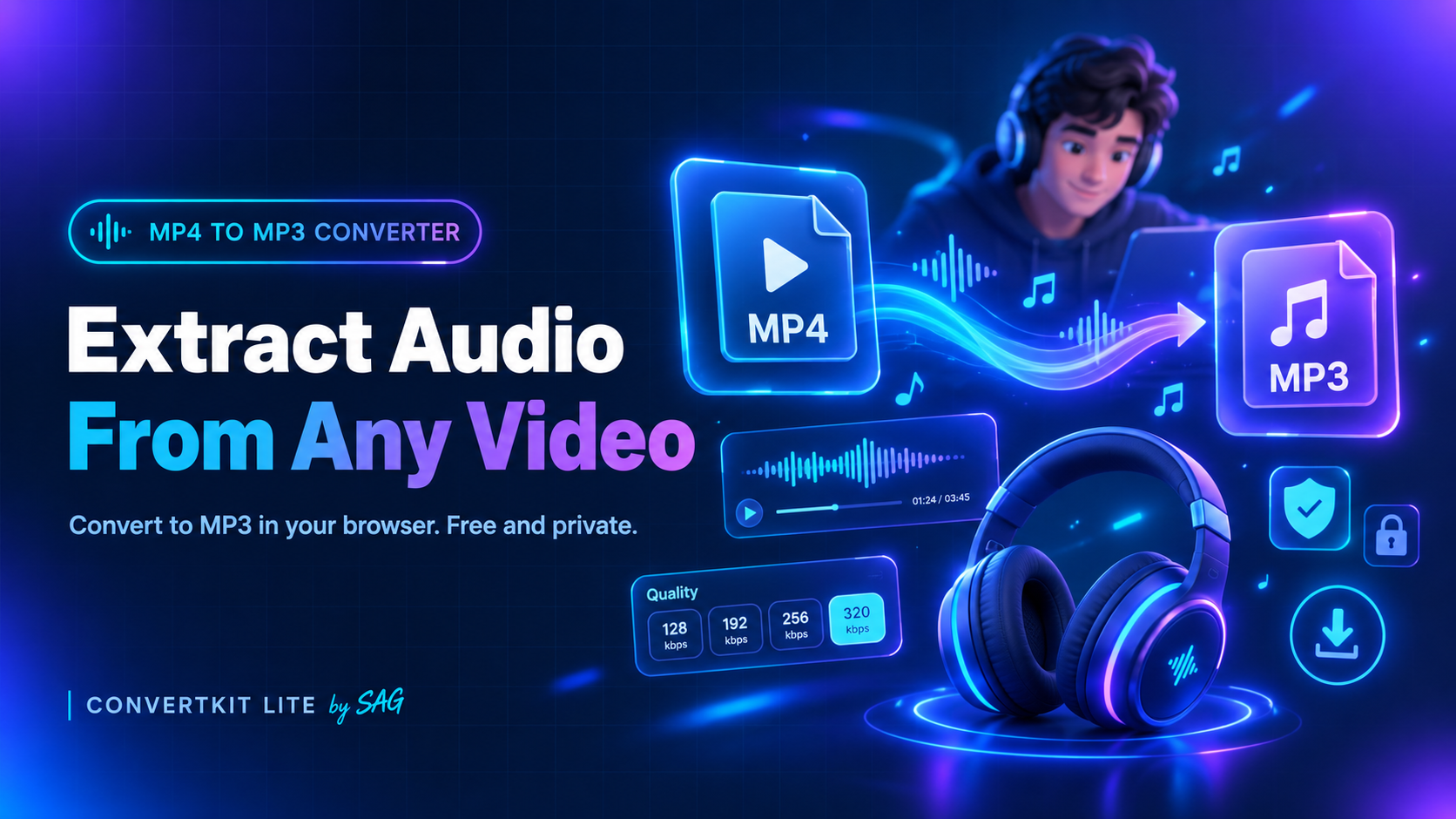
Need just the audio from a video? Maybe it's a lecture you want to listen to on the go, a podcast recorded as video, or a song from your own clip. The MP4 to MP3 Converter from ConvertKit Lite pulls the audio out of a video and saves it as an MP3 file. It runs in your browser, so there is nothing to install and no account to create.
How to convert MP4 to MP3, which bitrate to choose, what formats work, and what to do if a conversion fails.
What Does Converting MP4 to MP3 Mean?
An MP4 file usually holds both video and sound. An MP3 file holds sound only. Converting MP4 to MP3 means taking the audio track out of the video and saving it as a smaller, audio-only file that plays on almost any phone, computer or music player.
How to Convert MP4 to MP3
- Open the MP4 to MP3 Converter.
- Drag your video into the box, or click it to browse your files.
- Choose the MP3 quality: 128, 192, 256 or 320 kbps.
- Select Convert to MP3.
- Preview the audio in the player, then download your MP3.
Which MP3 Quality Should You Choose?
The quality setting is called bitrate. A higher bitrate sounds better but makes a bigger file.
- 128 kbps: standard quality and the smallest file. Fine for speech, lectures and quick sharing.
- 192 kbps: a good balance of size and sound. A solid choice for most music and speech.
- 256 kbps: high quality for people who care more about sound.
- 320 kbps: the maximum quality and the largest file.
If you aren't sure, start with 192 kbps. Keep in mind that the sound can only be as good as the audio in the original video.
Which Video Formats Work?
The tool works with MP4, MOV, M4A and WebM files in most browsers. What works depends on what your browser can decode, and Chrome handles the widest range of formats.
Is It Private?
Yes. The conversion happens locally in your browser, so your video is not uploaded to a server. That also means you don't wait for an upload before the conversion starts.
How Long Can the Video Be?
There is no file size limit on our side, and no watermark or account is needed. However, the whole file is processed in your device's memory. Videos longer than about an hour, or very large files, may fail on some devices. If that happens, try a shorter clip or use Chrome.
Why Did My Conversion Fail?
- The video has no audio track. There is nothing to extract, so check that the video plays with sound.
- The format isn't supported by your browser. Try Chrome, or convert the video to MP4 first.
- The file is too large for your device's memory. Try a smaller or shorter file.
A Quick Note on Copyright
Only convert videos you own or have permission to use. Extracting audio from someone else's content may break their rights or a website's terms.
Try It Now
Open the MP4 to MP3 Converter, add your video and download your audio in a few clicks. If you want a short animated clip from a video instead, try the MP4 to GIF tool.
Need to convert a file?
Try our free PDF, image, audio and video tools. No sign-up needed.